

Applets
contents
visual index
 introduction std_logic_1164 gatelevel circuits delay models flipflops adders and arithm... counters LFSR and selftest memories programmable logic
 state-machine editor
 counter counter with... counter up-down counter up-d... branch-predi... stack contro... traffic ligh... RS232 transm... misc. demos I/O and displays DCF-77 clock relays (switch-le... CMOS circuits (sw... RTLIB logic RTLIB registers PRIMA D*CORE MicroJava PIC16 cosimulation Intel MCS4 microc... image processing ...
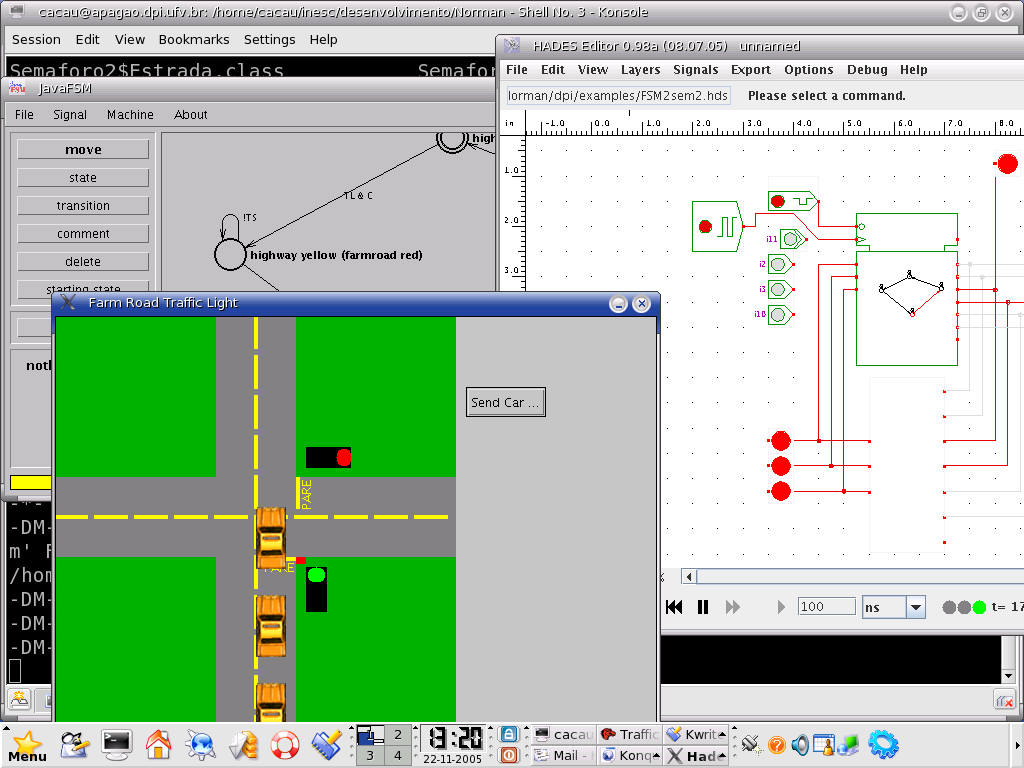 Circuit Description
"A busy highway is intersected by a little-used farmroad. Detectors are
placed along the farmroad to raise the signal C as long as a vehicle is
waiting to cross the highway. The traffic light controller should operate as
follows. As long as no vehicle is detected on the farmroad, the lights should
remain green in the highway direction. If a vehicle is detected on the
farmroad, the highway lights should change from yellow to red, allowing the
farmroad lights to become green. The farmroad lights stay green only as long
as a vehicle is detected on the farmroad and never longer than a set interval
to allow the traffic to flow along the highway. If these conditions are met,
the farmroad lights change from green to yellow to red, allowing the highway
lights to return to green. Even if vehicles are waiting to cross the higway,
the highway should remain green for a set interval.[From KATZ, Randy H.,
Contemporary Logic Design. University of California, Berkeley. 1994]"
Inputs:
C : detects vehicle on farmroad
ST: Restart Time counter (to TS and TL)
Outputs:
TS : short timer interval has expired (Yellow light)
TL : long timer interval has expired (Green or Red light)
HG, HY, HR : green, yellow, red highway lights
FG, FY, FR : green, yellow, red farmroad lights
Component written by Ulisses Chippe, Giliardo Freitas and
Ricardo Ferreira, DPI, Universidade Federal Vicosa, Brazil, cacau@dpi.ufv.br
To edit the state-machine, activate the popup-menu on the
FSM symbol and select the edit menu item.
This opens the editor window for the FSM,
which uses a mode-oriented user-interface.
Circuit Description
"A busy highway is intersected by a little-used farmroad. Detectors are
placed along the farmroad to raise the signal C as long as a vehicle is
waiting to cross the highway. The traffic light controller should operate as
follows. As long as no vehicle is detected on the farmroad, the lights should
remain green in the highway direction. If a vehicle is detected on the
farmroad, the highway lights should change from yellow to red, allowing the
farmroad lights to become green. The farmroad lights stay green only as long
as a vehicle is detected on the farmroad and never longer than a set interval
to allow the traffic to flow along the highway. If these conditions are met,
the farmroad lights change from green to yellow to red, allowing the highway
lights to return to green. Even if vehicles are waiting to cross the higway,
the highway should remain green for a set interval.[From KATZ, Randy H.,
Contemporary Logic Design. University of California, Berkeley. 1994]"
Inputs:
C : detects vehicle on farmroad
ST: Restart Time counter (to TS and TL)
Outputs:
TS : short timer interval has expired (Yellow light)
TL : long timer interval has expired (Green or Red light)
HG, HY, HR : green, yellow, red highway lights
FG, FY, FR : green, yellow, red farmroad lights
Component written by Ulisses Chippe, Giliardo Freitas and
Ricardo Ferreira, DPI, Universidade Federal Vicosa, Brazil, cacau@dpi.ufv.br
To edit the state-machine, activate the popup-menu on the
FSM symbol and select the edit menu item.
This opens the editor window for the FSM,
which uses a mode-oriented user-interface.
- move-mode: Click-and-drag any one of the state symbols (circles) to a new location on the editor canvas. The currently selected state is highlighted in red. Use the textfield on the lower left to set the name of the selected state. To change the output values for Moore-type outputs in the selected state, first select that output in the list on the lower left and then select the new output-value (0 or 1) in the radio-button on the bottom.
- state-mode: Click the mouse to create a new state and set its name and the default output values via the GUI controls on the lower left part of the editor window.
- transition-mode: To create a new transition between states, first click of the initial state, then on the final state. Enter the logical condition that activates the transition in the textfield on the lower left, e.g. "*" for an always active transition, or "A&B" for a transition that is only active if the "A" and "B" inputs are both active (1).
- comment-mode: Click the mouse to specify the position for a new text comment on the editor canvas; next enter the comment into the text-area in the lower left part of the editor window and finally press "apply" to create the comment.
- delete-mode: Click the mouse to delete a state, transition, or comment.
- starting state-mode: Click the mouse on a state symbol to select that state as the initial starting-state of the FSM.
- Click the test FSM button to run a simple selftest that checks for each state whether transitions are active for any combination of inputs.
- Use the load and save as operations to load or save the FSM design file.